How to Stream Video to Steam: RTMP Settings and Setup
My step-by-step Steam broadcasting setup guide covers accounts, RTMP tokens, App IDs, encoding settings and how to test your stream.
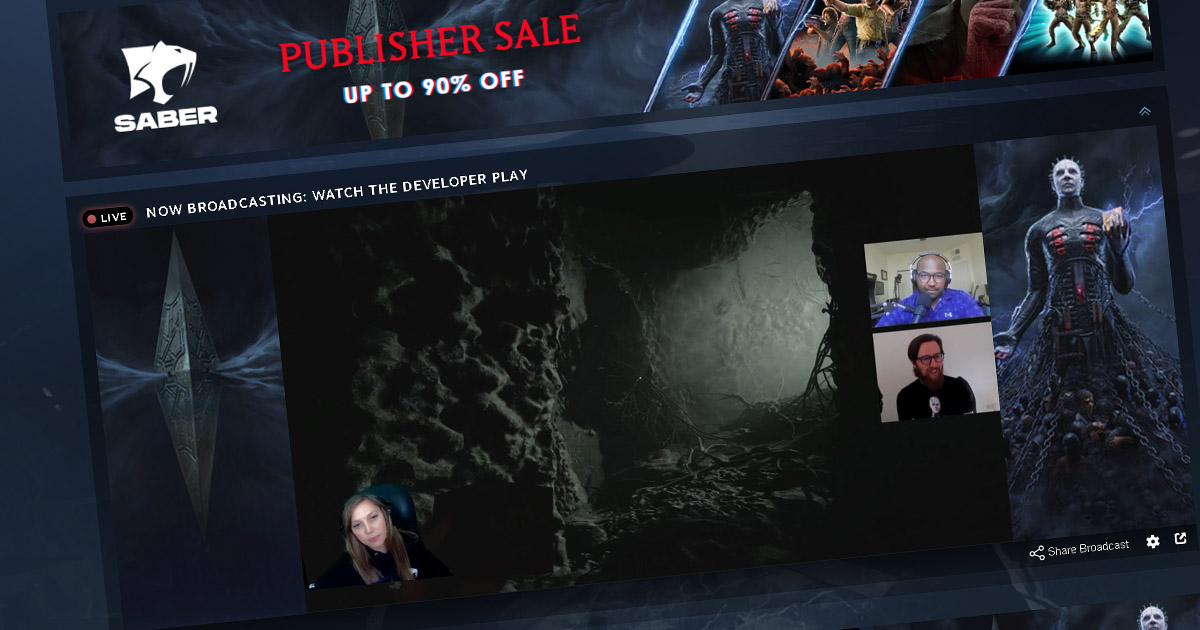
If you've tried setting up a Steam broadcast before, you'll know it isn't quite as straightforward as uploading a video to YouTube.
Steam uses RTMP for broadcasting. That means you need software or a service capable of sending a live video stream to Steam's servers. (RTMP stands for Real-Time Messaging Protocol).
You can do that using OBS, or you can use a cloud broadcasting service such as BroadcastLoop. Here's how I'd get everything set up.
Step 1: Open Steam's broadcasting configuration
Visit Steam's broadcast upload page.
Your account needs to satisfy Steam's broadcasting requirements. In general, Valve requires an unrestricted Steam account and the appropriate permission to broadcast your particular game.
I'd personally use a dedicated broadcasting account when running regular promotional streams. That keeps things separate from my own gaming account.
Step 2: Set the correct Steam App ID
You need to associate the stream with the game you're promoting. Your game's App ID can be found in Steamworks and in the URL of its Steam Store page.
Use the App ID of the main game rather than a demo or DLC. If the wrong App ID is configured, you may not see the broadcast where you expect it.
Step 3: Get your Steam RTMP token
Steam's broadcast configuration page lets you generate an RTMP token. This identifies the broadcast when a streaming tool connects to Steam.
Treat the token like a password. Don't post it in a screenshot or send it around casually. Steam also provides the connection details needed by your broadcaster.
Step 4: Prepare the broadcast video
Here is the truth, Steam downgrades your video based on MANY factors. They have a managed bandwidth system that will alter their broadcast streams based on the popularity of the page. Massive traffic could so a fluctuation of the video output regardless of what the input video is.
Don't be tempted to stream a massive resolution, this could force the RMTP server to downgrade the stream.
Keep it middle grounded and sharp:
I suggest:
- Resolution: 1920p / 1280P.
- Aspect ratio: 16:9. <- Important
- Video codec: H.264.
- H.264 profile: High; level 4.1.
- Frame rate: 30 FPS <- Important
- Keyframe interval: 2 seconds.
- Video bitrate: 5,000 kbps, constant bitrate. <- Important
- Maximum video bitrate: 7,000 kbps, constant bitrate.
- Audio codec: AAC-LC.
- Audio bitrate: No more than 128 kbps.
Always check Valve's latest Steam broadcasting setup documentation for the exact supported settings.
Step 5: Choose how to stream
Option A: OBS
Download OBS, configure the custom streaming server using Steam's RTMP connection details, choose your output settings and start broadcasting.
It's great software, but your computer and upload connection must remain available while you're sending the stream.
If you're considering leaving it running all day, I've written about the real cost of 24/7 OBS broadcasting.
Option B: BroadcastLoop
This is the option I developed for people who don't want to keep OBS running.
With BroadcastLoop, you upload your gameplay video, configure your Steam broadcast details in the dashboard and start streaming. Our servers handle the video conversion and broadcasting.
You don't have to prepare the final outgoing stream on your own computer, and your machine can be switched off after the upload is complete.
Step 6: Test it before making it public
I'd always do a private test before announcing anything. Steam lets you restrict broadcast visibility during testing.
Check that the video and audio are working, that the broadcast is connected to the correct game, and that the stream looks good on the actual Steam page.
Once you're satisfied, make the broadcast public and check that it appears where expected. Some event-specific broadcasting arrangements require additional Steamworks configuration.
Common reasons a Steam broadcast doesn't appear
These are the first things I'd check:
- Is the correct game App ID set?
- Is the account authorized to broadcast?
- Is the stream visibility public?
- Is the RTMP token correct?
- Are the video output settings within Steam's requirements?
- Is OBS or your cloud service actually sending the stream?
In my experience, getting these basics right beats randomly changing a dozen advanced settings.
Getting started
I built BroadcastLoop to make this process easier for developers and publishers. You can upload once, broadcast to Steam from the cloud, and avoid keeping a local machine running day and night.
We offer 24 hours of complimentary streaming to test it. If you've got a game to promote, I'd start there and see how the workflow fits you.